
Measure and Create Routes
**Click here to learn more about Creating WAYPOINTS**
When creating a waypoint via the  icon, you'll have an option to [1] Measure and Create Routes
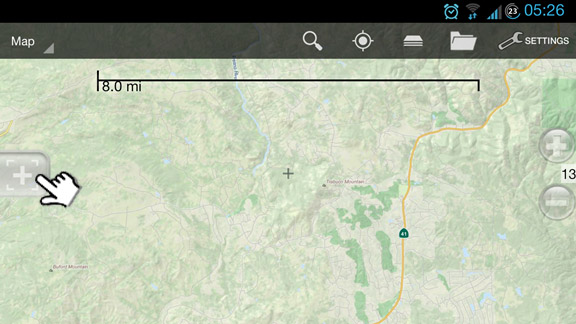

The Interface
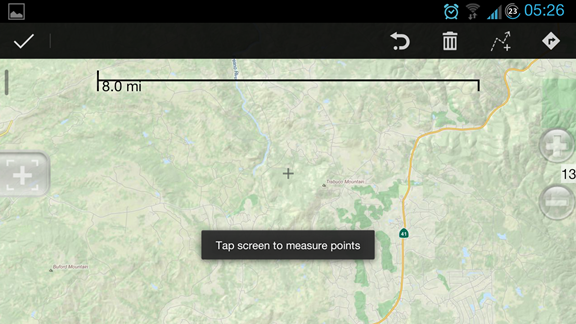
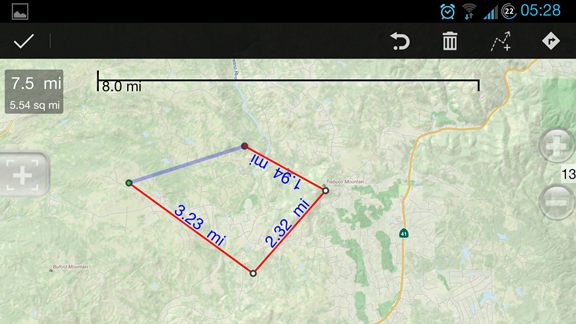
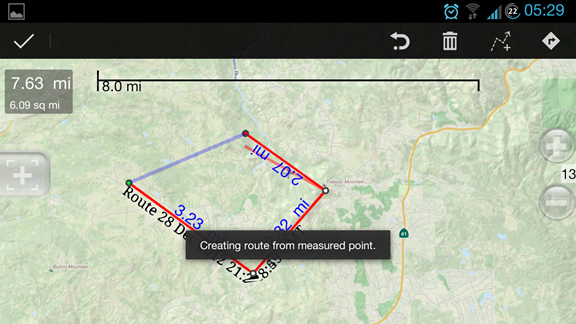
***Tapping on any point in the map will allow you to create and measure the points (multiple points allowed)
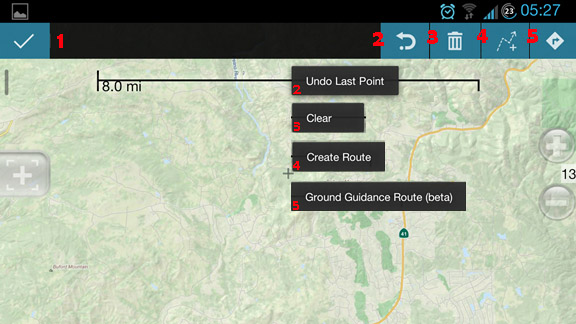
Option 1 Lets you discard all the points you selected and goes back to normal map view.
Option 2 Undoes the last created point (e.g. a or b or c, etc..)
Option 3 Clears the points
Option 4 Creates a route
Option 5 Ground Guidance Route (beta) which is basically a guide on which terrain or path is viable to be taken to get from Point A to Point X, take note that this is still in beta phase and some routes may not be 100% accurate
Creating Routes
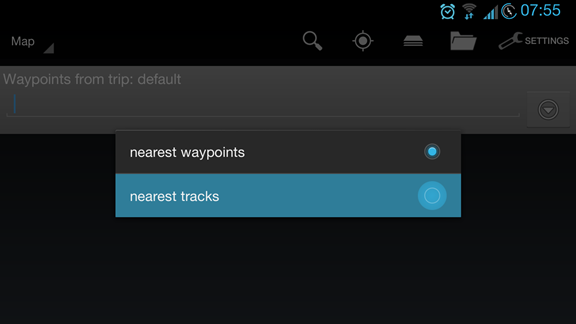
You can find your created routes via the "List Waypoint/Tracks" option > select "Nearest Tracks" [Tutorial]
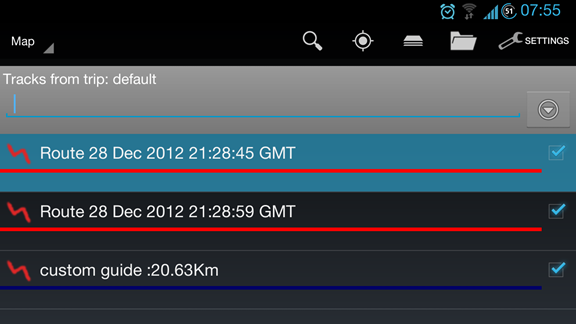
It will then display your created routes and guides you created.
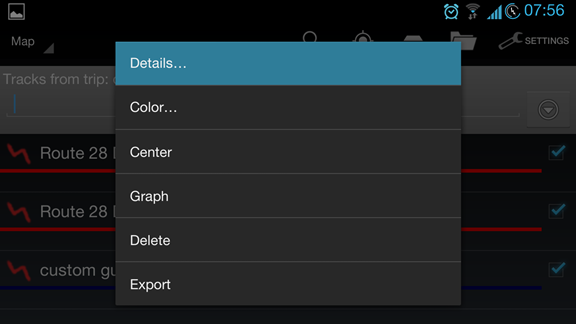
Tapping on a Route or Guide will bring out the options pop-up which allows you to customize them.
*tapping on details will show the details of the route and enables the end-user to rename the route/guide.
Creating Ground Guides
**After creating a route, you can create custom land guides to show you available trails that you can navigate to get from Point A to Point X.
Click on [5] Ground Guidance Route

You can choose a custom name for your route and choose the guide type, either by Foot, ATV, Jeep, Water or Trail.
**In this example, the guide shown is when using a trail to navigate the said points. [The darker shade Purple/Violet line]

You can also zoom in for a clearer view of the guided land route.

Comments
1 comment
This was helpful, I think I got it. Need to use it a couple of times.
Article is closed for comments.